Accurate attendance is the foundation of flawless payroll. The Attendance Module consolidates data from hardware biometrics, mobile GPS punches, and web portals into a single source of truth.
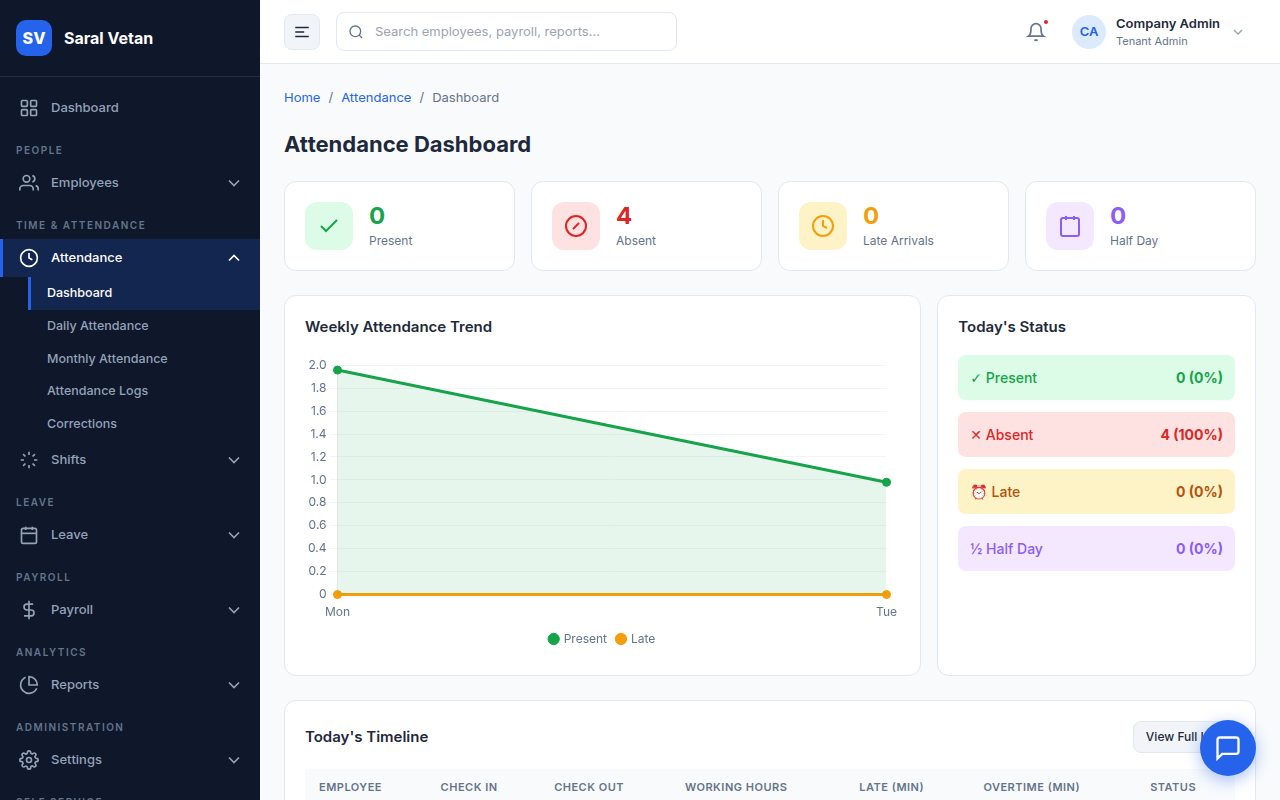
1. Daily Attendance Dashboard
The main screen provides a real-time heatmap of today's attendance across all branches, flagging latecomers and absentees.
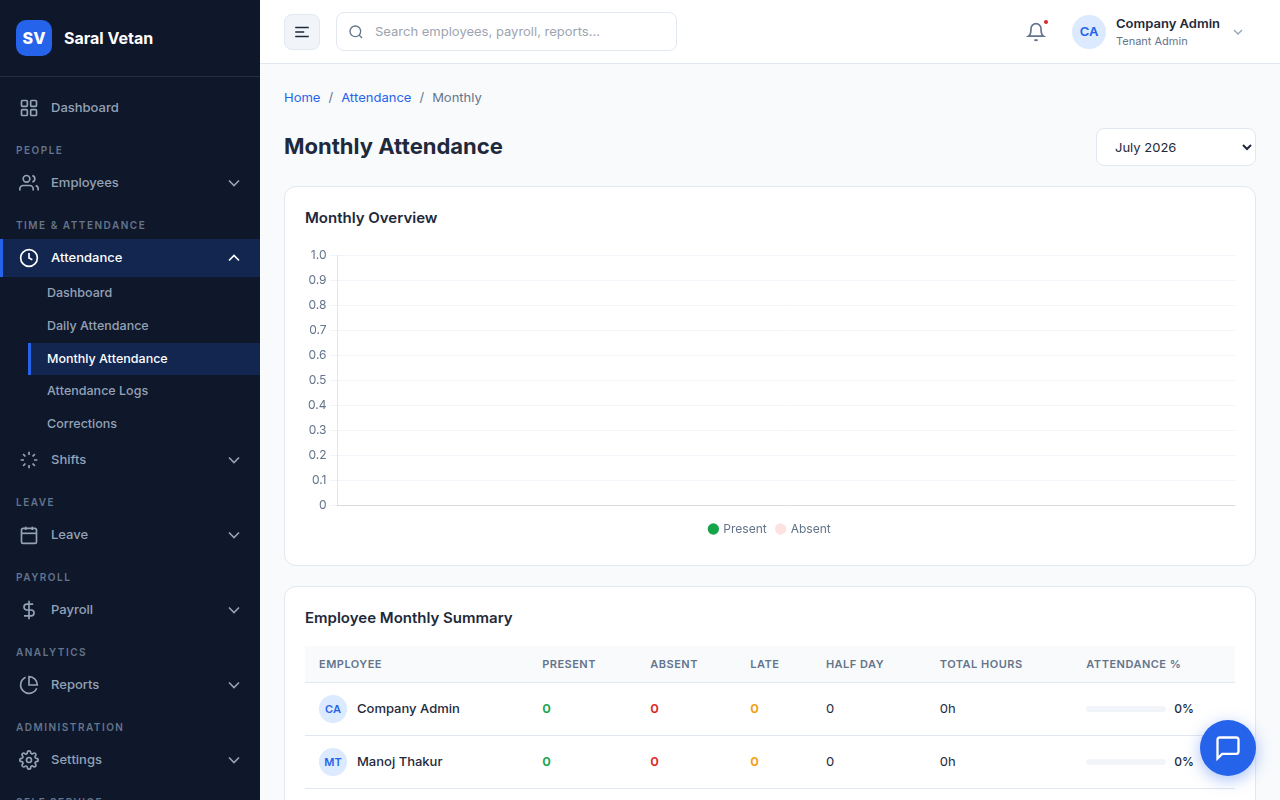
2. Monthly View
For a macro-level perspective, switch to the Monthly View. This grid helps HR managers identify patterns in absenteeism.
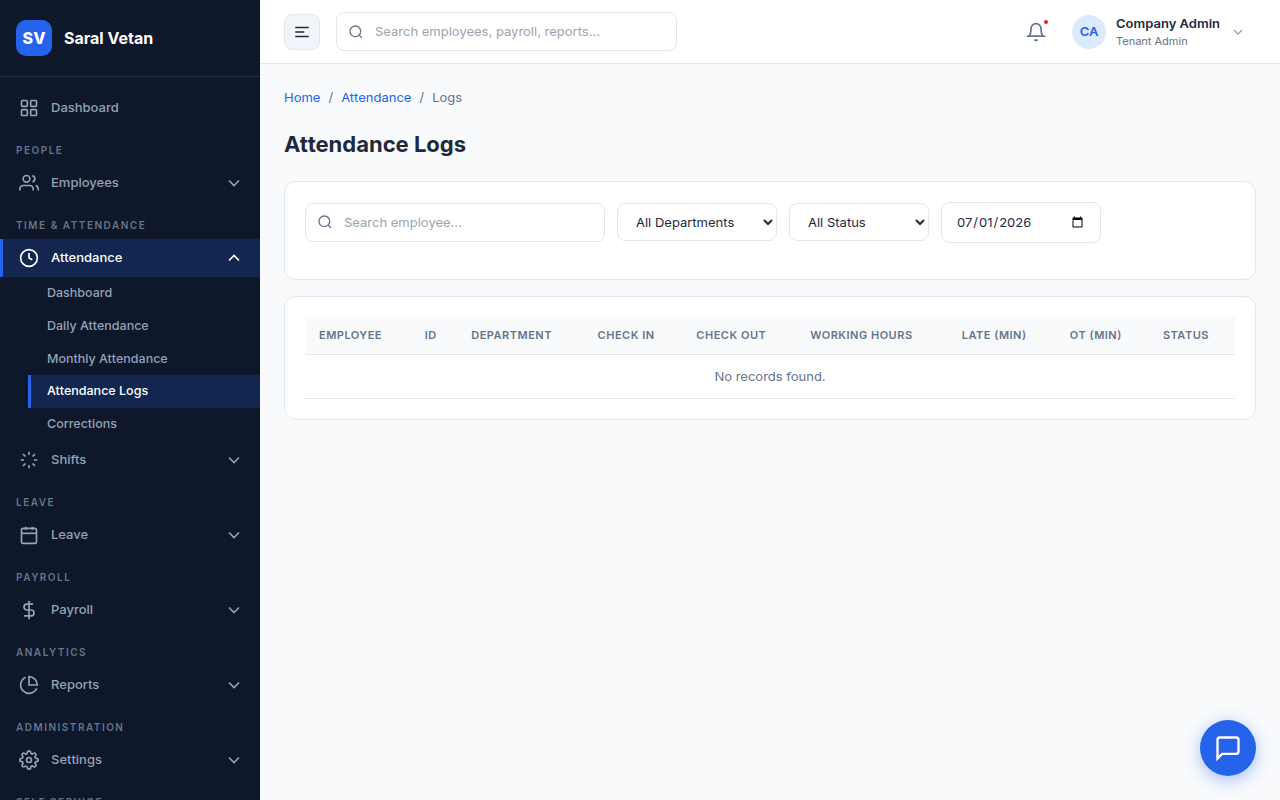
3. Raw Attendance Logs
If there is a dispute regarding a punch-in time, you can access the unfiltered Raw Logs directly from the devices.
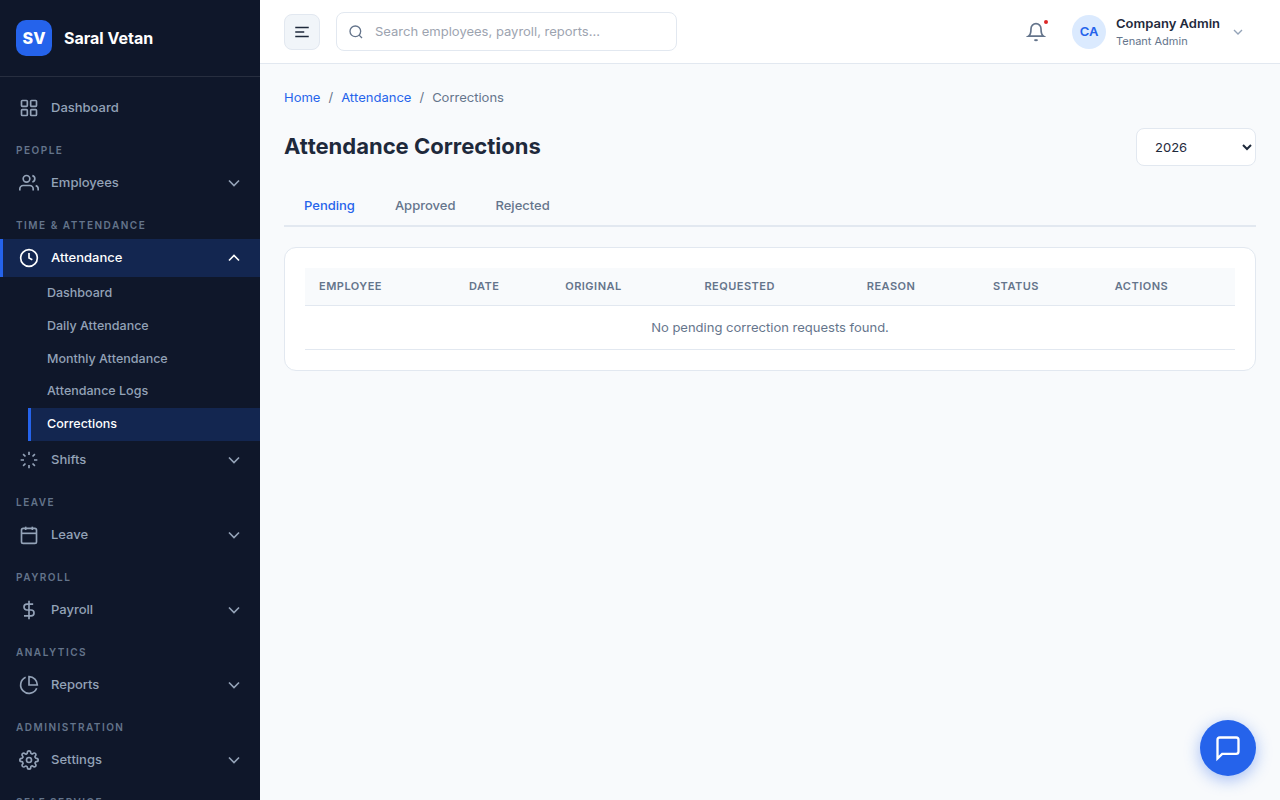
4. Processing Corrections
Employees occasionally forget to punch in or out. When they submit a correction request via their portal, it appears in your Correction Queue.
How to process a correction:
- Open the Corrections sub-module.
- Review the employee's justification and the timestamp they provided.
- Cross-reference with their manager if necessary, then click Approve. The system will recalculate their daily working hours instantly.
💡 Tip: Enable "Geofencing" in settings to ensure mobile punches are only accepted when the employee is physically within the office premises!